

Smarthub Onboarding
Welcome to Smarthub’s onboarding page! For tips on how to get started, check the videos down below.
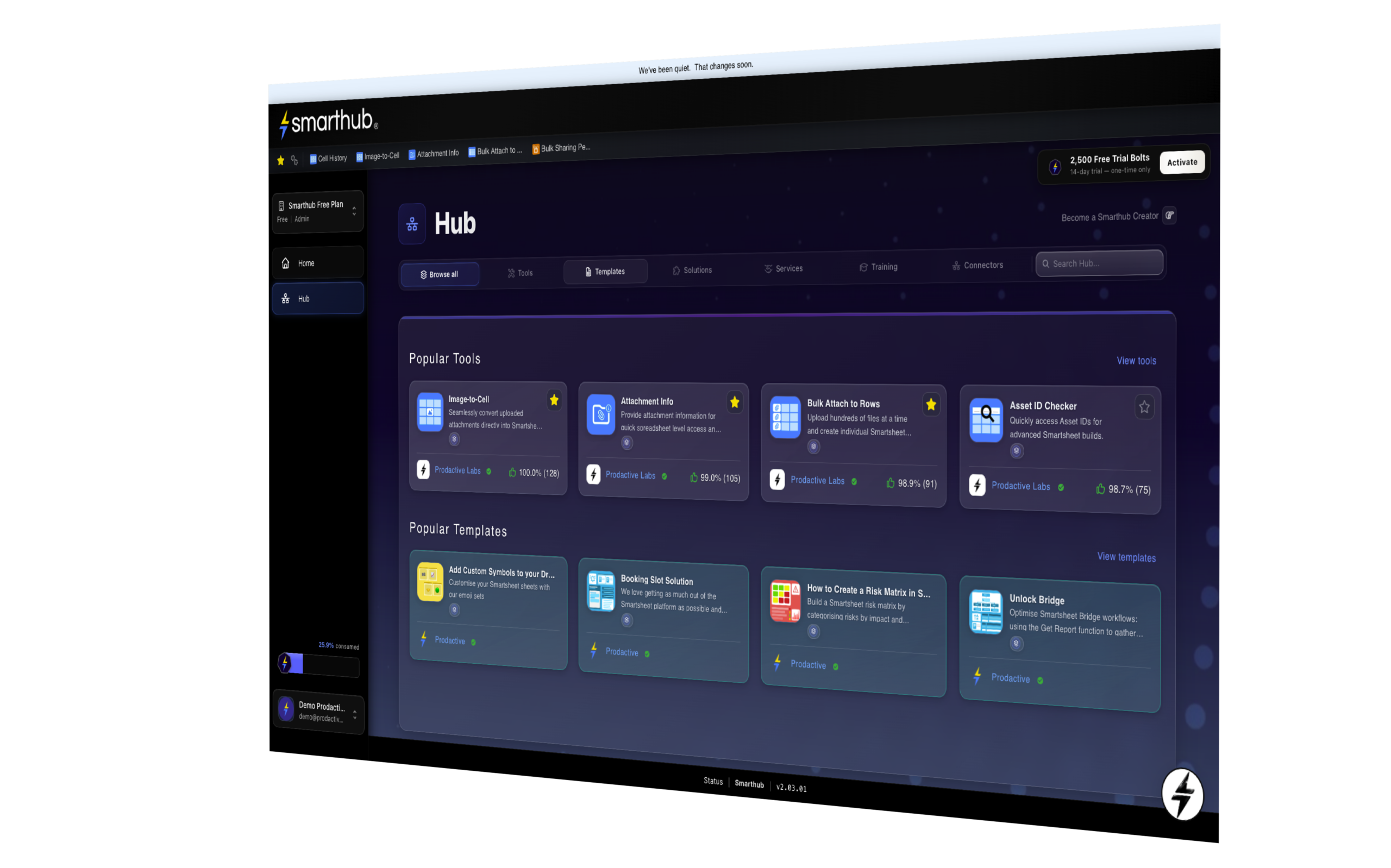
Smarthub Quick Tour
Setting up API keys
Smarthub starter templates

Click on the respective button for the region your account is in to download the Smarthub Starter template so you have some clean example sheets to test run the tools
If you want to restrict access to tools to plan members (non-admins) you can easily do this where you set up the API keys
Image-to-Cell
Seamlessly move attached images into cells in your sheets – up to 10 a row
Smartsheet can be incredibly visual. Especially with Board view. And it’s fantastic being able to have images in sheets as once they are there, they can be used in reports, dashboards, update requests, and even used and cross-referenced in other sheets. But it’s usually a slow manual process to get images into cells on a sheet. Particularly where people submit photos in a form and then these are all attached and hidden from view.
Enter Image-to-Cell! Automate the process of adding images to your sheet using this fantastic tool. Simply set up the tool and tell it what you want. Is it just one image or 10 images? And do you want the images to go to specific columns based on their names? Or do you want the images to shuffle to the right each time a new images is added, until there’s no more space and so the oldest one drops off. Once this tool is set up, any time an image (png or jpeg) is added to the row, it runs and does the work for you. So think of the hours each month you will save not copying and pasting images into cells. And think how beautiful you sheets, boards, reports and dashboards can look with images added. And think how much faster information can be communicated with pictures. Now your smartsheets are really smart sheets.
Oh, and if you combine this with Bulk Attach to Row, upload hundreds of images to a sheet, and when you come back from your tea break, your sheet will be a sight to behold – with the names of all the images listed, no less! Now that’s what we call automagic!
Cell History
Track the history of changes made in key cells you want to monitor
“Want to easily be able to see what has changed in a particular cell without having to click on ‘Cell history’ each time? For example, what did the project status say last week and was it red or yellow? And who changed that cell? And wouldn’t it be useful if you could see that in a column next to the cells you want to see this information on.
With Cell History, you can do just that. Tell the tool which columns you want to monitor in a sheet, and like your own not-so-private eye, it will monitor all the cells in that column, and any other column you ask it to, and keep a record of the changes as they happen.
It will not only tell you what changed, but who changed it and at what time. And when the cell gets full, well, the previous information then falls away, unless you want it saved somewhere. But then, you’ve also got File History for that.”
Attachment Info
Easily see priority information about attachments on each row
Being able to attach files to rows in Smartsheet is fantastic. You can then share these in reports, notifications, update requests and more. And you can uploads lots of attachments to one single row. But if you’re working at scale, if you want to see what attachments are in a row or how many, you need to click the attachment icon – and then it shows you the top 10 attachments. But what if you have more? You have to scroll though the attachment panel on the other side. And what if you’re looking for a specific attachment on a sheet? Searching within the sheet doesn’t work…
And what if someone submits a form with attachments? Can you quickly see if they have attached all 5 documents you asked for and named them correctly. Um, no.
So wouldn’t it be great if you could see how many attachments are on each row, and, imagine this, the names of all the attachments, including the file types. In your sheet. So you can see and act upon that information. And set up formulas and rules to alert you if attachments are missing or wrong.
Well, fancy that. The Prodactive team thought exactly that and came up with a cracking solution that does just that. It adds columns to your sheet and then updates these each time the number of attachments changes and also when the names of attachments change. And it tels you the size of the attachments. Bravo!
Bulk Attach to Row
Bulk upload attachments to a sheet, add to rows, and insert file name in a cell
Want a quick way to upload attachments to rows in Smartsheet? With Bulk Attach To Row, you simply define the sheet you want attachments added to, add the files to the uploader, press upload and step back. All the attachments will then be posted to separate rows and the filename added to an additional column for ease of reference. You can upload any file type that Smartsheet accepts on a sheet – and if you have zip files or folders, the files will be extracted out. The ideal working range is up to 500 files at one go to not overhead the system – if you have more, your sheet will need to take a breather and the uploader will wait patiently until the sheet is ready to digest more.
And even better, if you have a single attachment you want duplicated on multiple rows, you can define how many rows you want it to be posted to (over 1000 if you wish) and the uploader will do the work for you. No more spending time attaching files line by line…. now you can get on with more productive things!
Bulk Permissions Changer
Change Smartsheet bulk sharing permissions easily and instantly
Maintaining the right access levels to your Smartsheet workspaces and assets is critical. It’s easy to manage one by one, but this can be time-consuming, especially if you’ve got lots of sheets items to edit. And where the default sharing setting is ‘Editor – Can Share’, you most likely have many assets where you’d rather the setting was ‘Editor – Cannot Share’ or less.
With Bulk Permissions Changer, you can downgrade all users shared with a specific permission level – either by asset or by workspace, whichever way they are shared. After appropriate security checks, simply define which workspace or asset you want to change permissions on, then which permission level you want to change from to. You can even remove all people with the same permission.
And we’ve got more features coming soon so you can be even more precise!
Dropdown Manager
Have the ability to update dropdowns on other sheet automatically when lists are changed
Set one or many dropdown lists to automatically update from a master source. When the master source changes, all the dropdowns lists in sheets that been configured will also update automatically, usually within 2 minutes.
You can set as many columns as you wish to be updated from one single source, and set up as many separate configurations as you need.
And coming soon, you will be able to use other data sources to update your dropdowns in Smartsheet.
ID Checker
Quickly get the asset IDs on your sheets for use in Bridge or APIs
Quickly surface the asset IDs on your sheets or reports for use in Bridge or APIs by selecting the workspace and assets and, hey presto, you can copy and paste wherever you need them.
Please get in touch with any questions or feedback. You can do this directly within Smarthub using the Submit Feedback button on the homepage.
Or if you prefer, you can access the feedback form below!